
Are you looking for the top signs your WordPress media library needs a folder system? In this post, we will show you when to switch to a folder system instead of the default media library.
A crowded WordPress media library slows everything down. You scroll through months of uploads, search by a vague file name, then re-upload the same image because the original is buried.
That happens when WordPress sorts files by date and doesn’t provide a real folder structure. CatFolders adds folders inside the media library so you can group files by client, product, campaign, or page.
This post covers 10 signs your library needs that structure, plus how a folder plugin helps you find files faster without breaking image links.
First, we will see why the default media library gets messy.
Table of Contents
Why Does the Default Media Library Get Messy?
WordPress organizes media by upload date. That works when a site has a few images. It falls apart once you add new media every week. The media library folder view is still a long grid of files, so you scroll, search by filename, and hope you find the right asset.
There is no folder structure natively for client work, product photos, PDFs, or campaign galleries. Files from blog posts, WooCommerce products, and page builders land in the same list.
After hundreds or thousands of images, the WordPress media library becomes a date-sorted dump instead of a file structure you can use. Teams make it worse. Freelancers, multi-author blogs, and client sites keep uploading into the same library. Without folders, nobody shares a folder-based workflow.
People re-upload files, use weak folder names in their notes, and waste time in the WordPress admin looking for something already on the server. A folder plugin fixes that by letting you create folders, drag and drop files into folders, and keep a sidebar folder view inside the dashboard.
CatFolders does this directly in the media library. If you already used FileBird or another WP media folder tool, you can import that folder structure instead of starting over.
Default Media Library vs Media Library with Folders
| Point | Default WordPress media library | WordPress media library with folders |
|---|---|---|
| Organization | WordPress organizes files by upload date only. There is no way to create folders natively. | A folder plugin adds a media library folder tree so you can organize your WordPress media library by project, page, or file type. |
| Finding files | You scroll through thousands of files or search by filename and metadata. | Folders and subfolders help you move files into the right folder and find them from the sidebar. |
| Team workflow | Freelancers and editors upload to a single shared list with no shared folder structure. | Folders by client or campaign provide the team with a user-friendly file management system in the admin panel. |
| File handling | You often re-upload media files or open an FTP program to hunt through the uploads directory. | Drag-and-drop lets you organize files, create new folders, and keep files within a folder-based view. |
| Sorting | Limited sorting options and no folder view in the media screen. | Sorting options plus a folder menu option make organizing your files faster as the number of files grows. |
| Plugin setup | No extra WordPress plugin is required, but the library stays messy. | CatFolders or a FileBird plugin import gives you WordPress media folders without changing image SEO links. |
| Best for | Small sites with a few uploads. | Sites that need a better media library, WP media folder structure, and less time spent searching. |
10 Signs Your WordPress Media Library Needs a Folder System
| Sign | What you notice | Why it happens | What a folder system changes |
|---|---|---|---|
| 1. Endless scrolling | You hunt one image through pages of uploads | WordPress sorts by upload date | Open the right folder instead of scrolling the full library |
| 2. Useless file names | IMG_2048.jpg tells you nothing | Camera and builder uploads keep default names | Group files by page, product, or campaign folder |
| 3. Team uploads pile up | Editors and freelancers add files with no shared plan | No native folder structure | Shared folders by client, site section, or content type |
| 4. Mixed file types | Blog, product, and page images sit in one list | One media library for every upload | Separate folders for posts, WooCommerce, PDFs, and banners |
| 5. Re-uploading the same file | You upload a copy because the original is lost | Hard to find files in a date grid | Drag existing files into folders and reuse them |
| 6. Messy product images | Variable product photos are hard to match | Product media has no folder view | Product or SKU folders keep galleries together |
| 7. Slow page building | Every new page starts with a media search | No folder-based workflow | Pick files from the page or project folder |
| 8. Old campaigns buried | Last season’s creatives disappear under new uploads | New files push old ones down the date list | Campaign folders keep old assets easy to reopen |
| 9. No shared structure | Each person organizes files in their own head | Default library has no team file structure | One sidebar folder tree for the whole admin team |
| 10. Library feels too big to clean | You avoid organizing because there are thousands of files | Cleanup looks like a full rebuild | Start with a few main folders, then sort in batches |
Now, let’s take a closer look at each option and see why it affects your productivity.
Sign 1: You Scroll Forever to Find One Image
This is the first sign the default WordPress media library is too small for your workflow. WordPress does not create folders natively, so every upload lands in one date-sorted list. After a few hundred files, finding a single banner means paging through the grid and guessing from the thumbnails.
A media library folder changes that. You organize your WordPress media library by page, client, or file type, then open that folder instead of scrolling the full library. A folder plugin, such as CatFolders, adds a sidebar user interface directly to the WP media screen.
You can create folders, move files into folders, and use folders and subfolders to keep related files inside one place.
Freelancers and site owners spend less time hunting once the folder structure is in place. The free version is enough to start organizing your files. If you used the FileBird plugin before, import that folder tree and keep organizing your media from the same media folder view.
Sign 2: File Names Do Not Help You Anymore
Default uploads rarely use useful names. Cameras, phones, and page builders save files as IMG_2048.jpg or image-12.png. In the WordPress media library, that filename is almost the only clue you get besides the upload date.
After thousands of files, search stops helping, and organizing your files by memory becomes the real workflow. A media folder gives those files a place that search cannot. You create folders for products, blog posts, or clients, then drag and drop the files into the right folder.
The file can keep a weak name and still be easy to find because it lives in a folder-based structure. CatFolders adds that WordPress media library folder view in the dashboard. You organize your media library without first renaming every file.
The free version lets you start with main folders. Pro adds subfolders and sorting options when the number of files grows. That is more helpful for organizing than another round of filename cleanup.
Sign 3: Client or Team Uploads Keep Piling Up
A single-user site can live with a messy library for a while. Client sites and multi-author blogs cannot. Freelancers, editors, and shop managers all add new media to the same WordPress media library. WordPress organizes those uploads by date, so each person’s files land on top of the last batch.
There is no shared folder structure and no step-by-step place for “this client” or “this campaign.” That is when organizing your WordPress media library becomes a team problem. People upload duplicates, save files in the wrong mental group, and spend extra time in the admin panel looking for work someone else already added.
A folder plugin gives the team a visible file structure.
Create folders by client, site, or content type, then ask everyone to drop files into folders from the sidebar. CatFolders is helpful for organizing this kind of workflow. The free version covers main folders. Pro folder permissions help you structure your team, so not every user can move every file.
Sign 4: Product, Blog, and Page Images Are Mixed Together
The default WordPress media library treats every upload the same. A product gallery image, a blog featured image, a landing page banner, and a PDF can sit side by side because they were uploaded on the same day.
When you organize your media, you need to group those files. Date order does not do that. This mix slows page work and store work at the same time. You open the library to add a WooCommerce image, then scroll past the post photos.
You look for a page banner and land on a product thumbnail. A media folder separates that pile. Create folders for blog, products, pages, and documents, then move files into folders that match how you work.
CatFolders adds that WordPress media library with folders inside the dashboard. You keep using the normal media modal, but you pick files from the right folder instead of one mixed grid. That is a simple way to organize WordPress without renaming every file.
Sign 5: You Re-upload Files Because You Cannot Find the Original
Re-uploading is a clear sign the library has no usable folder structure. The image is already in WordPress. You cannot find it, so you add another copy. Now the media library has two files, two thumbnails, and more clutter.
After a few months of this, organizing your files gets harder, not easier. This happens because WordPress organizes media by upload date and filename. If you forget both, the original is no longer visible to you, even though it is still on the server.
A folder plugin stops that loop. Put the file in a page, product, or client folder the first time. Next time, open the folder instead of uploading again. CatFolders keeps that folder view in the WordPress media library.
You move existing files into folders with drag and drop, so the original stays the file you reuse. Less duplicate media also means a cleaner library and fewer mixed thumbnails when you build a new page.
Sign 6: WooCommerce Product Images Are Hard to Manage
A store adds media faster than a blog. Each product can need a main photo, gallery shots, variation images, and size charts. In the default WordPress media library, those files sit next to blog images and page banners.
When you edit a product, you hunt through the same date-sorted list instead of a product folder. That slows catalog work. You attach the wrong thumbnail, re-upload an existing photo, or lose variation images in the grid.
A media library folder stores files in its own structure. Create folders by category, brand, or SKU, then drag product images into the appropriate folder before assigning them. CatFolders works inside the WordPress admin media screens you already use for WooCommerce.
You organize your WordPress media library without changing image URLs, so product pages keep their current links. The folder sidebar is the difference between guessing from thumbnails and opening the product’s own files.
Sign 7: You Waste Time on Every New Page or Post
A new page should start with writing or layout. On a messy site, it starts in the WordPress media library. You open the image modal, scroll the date grid, and try to remember when the header image was uploaded.
That pause happens again for the featured image, the gallery, and every block that needs a file. This is a workflow problem, not a design problem. WordPress organizes media by upload date, so each new page has no folder to pull from.
A folder-based library changes the first step. Keep a folder for that page, that topic, or that landing page template. Then pick files from the folder instead of searching the full library. CatFolders puts that media folder next to the normal insert screen.
You organize your media library once, then spend less time on every new post. The free version is enough for main folders. Subfolders help when a page type accumulates many images over time.
Sign 8: Old Campaign Assets Are Buried Under New Uploads
Campaign files have a short life in the default WordPress media library. A holiday banner or ad set is easy to find in the week you upload it. A month later, new media pushes it down the date list.
When you need the same asset again, you scroll, search the filename, and often upload a fresh copy. That wastes storage and time. The file is already in the library. You just cannot see it in a useful folder structure. A media library folder keeps campaign work together once the launch date no longer matters.
Create a folder for the campaign, drop the images and videos there, and reopen that folder the next time you reuse the creative. CatFolders helps you organize your WordPress media library this way without moving files on the server.
The folder view stays in the WP admin, so old assets stay easy to find while new uploads keep coming in. Start with one campaign folder and add more as new projects go live.
Sign 9: Multiple People Upload Files With No Shared Structure
If more than one person can upload media, the default library turns into a shared dump. One editor saves blog images. Another drops product photos. A freelancer adds client banners. WordPress still shows one date-sorted list, so nobody can see a shared folder structure.
Each person organizes files in their own head. That slows the whole team. You ask where a file lives, someone re-uploads it, and the WordPress media library grows again. A media library folder fixes the process because the structure is visible in the sidebar.
Agree on folder names first, then have everyone drag files into folders from the same screen. CatFolders makes that folder-based workflow part of the WP admin.
You can organize your WordPress media library by client, site section, or content type. The free version covers main folders for small teams. Pro subfolders and folder permissions help when more people need a clear place to put new media.
Sign 10: The Media Library Feels Too Big to Clean Up
This sign shows up after the library already feels broken. You open Media, see thousands of files, and close the tab. Cleaning the default WordPress media library looks like a full rebuild, so the mess stays.
WordPress still sorts by upload date, so new files keep burying the old ones. You do not need to organize WordPress media in one sitting. A folder plugin lets you start with a few main folders, then move files in batches.
Create a folder for products, one for blog images, and one for clients. Drag a page of files into the right folder with the plugin and repeat when you have time. Folders to find files beat a giant cleanup project.
Using plugins like CatFolders keeps the work within the media library, so you do not need to rename the uploads directory or open FTP. The free version is enough to begin. Once the first folders are in place, the library stops feeling too big to touch.
The FIX – Use CatFolders Plugin
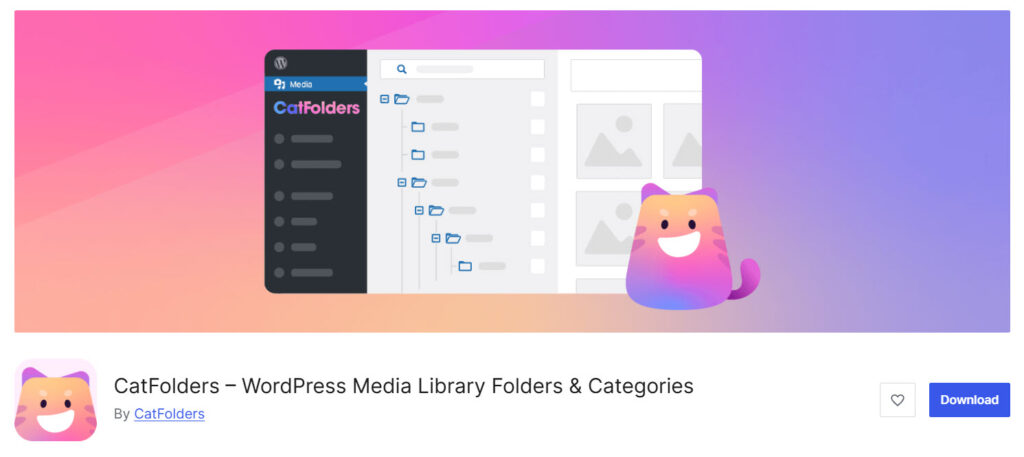
CatFolders adds a folder tree to the WordPress media library so you can organize files the way you work, not by upload date. Folders are virtual. Moving an image into a folder does not change the file path or break existing links.
That matters on sites with thousands of files, WooCommerce galleries, and old campaign assets you still need to reuse.
The plugin sits in the media screen you already use. You create folders, drag and drop files into them, and open the right folder when you insert an image into a post, page, or product. If you used FileBird or another media folder plugin before, CatFolders can import the folder structure so you do not have to start from scratch.
Here are the main features you will like:
- Unlimited main folders in the free version
- Drag-and-drop for single files or bulk moves
- Sidebar folder view inside the WordPress media library
- Import folders from FileBird and other media folder plugins
- Works with Gutenberg and common page builders
- SVG upload support with sanitization
- Subfolders for a deeper folder structure
- Sorting by name, date, author, and more
- Folder permissions for team sites
- Folders for posts, pages, and custom post types
and more…
If you need a clean WordPress media library, we recommend trying CatFolders!
Here are some similar articles you might like:
- 7 Best WordPress Media Library Plugins (2026)
- 10 Signs Your WordPress Media Library Needs a Folder System
- 7 GeneratePress Alternatives: Find the Best WordPress Theme
- How to Set Up a Private B2B Store with B2BKing (Beginner’s Guide)
- How Can You Use Conditional Logic to Create Smarter WooCommerce Product Options?
Frequently Asked Questions
Now, let’s look at some frequently asked questions and answers on this topic.
Does WordPress include a media folder I can use to organize files?
No. WordPress does not create folders natively in the media library. It groups files by upload date. A folder plugin, such as CatFolders, adds a sidebar folder structure so you can organize your WordPress media library by client, product, or page rather than by date.
How does a folder plugin help me organize WordPress media?
A folder plugin adds a folder-based view inside the WP admin. You create folders, drag files into folders, and open that folder when you insert an image. CatFolders keeps this inside the normal media library, so you do not need FTP or a separate file manager for daily work.
What is the difference between the default library and a WordPress media library with folders?
The default library is one long list. A WordPress media library with folders gives you a tree you can browse. Related files sit together. That is the main reason people switch to WordPress media folders after the library grows past a few hundred uploads.
Can I move files into folders without breaking image links?
Yes, if the plugin uses virtual folders. CatFolders does. The file stays in the uploads directory. The media library folder is a label in the admin, so existing posts, products, and galleries retain their URLs.
Can I import my FileBird folders into another WP media folder tool?
Yes. CatFolders can import a FileBird folder structure as well as folders from several other media plugins. That saves a rebuild if you already spent time organizing your files in FileBird and now want a different folder plugin.
Do I need subfolders or are main folders enough?
Main folders are enough for a small library. Folders and subfolders help when one client, product line, or campaign has many files. CatFolders includes unlimited main folders in the free version. Subfolders are a Pro feature.
Is a folder-based library useful for freelancers and client sites?
Yes. Freelancers and teams need a shared folder structure so that uploads do not pile up in one date list. Create folders by client or project, then ask everyone to drop new files into those folders. Pro folder permissions help when you do not want every user moving every folder.
How do I organize your WordPress media library if it already has thousands of files?
Do not clean everything at once. Add a few media library folder names that match your work, then move files in batches. Sort the images you need this week first. A step-by-step pass is easier than a full rebuild of the WordPress media library folders.
Can I use WordPress media library folders with WooCommerce and page builders?
Yes. CatFolders works in the media modal you already use for products, posts, and common page builders. You still insert files the same way. You just pick them from a folder instead of scrolling the full grid.
What is the fastest way to start with a WP media folder plugin?
Install CatFolders, create three or four folders, and drag current project files into them. That small folder structure is enough to prove the workflow. Add more WordPress media folders as new uploads come in, instead of trying to sort the entire library on day one.
Conclusion
If you recognized even a few of these signs, the default WordPress media library is slowing you down. Date order cannot organize your media once product photos, blog images, and client files are in a single list.
You scroll, guess from filenames, and re-upload files that are already there. A folder system fixes the workflow, not just the screen. Create folders that match how you work, move files into those folders, and let the team use the same structure. CatFolders does this inside the media library.
The free version is enough to start with main folders and to drag and drop. Pro adds subfolders, sorting options, and tighter control when the library and the team both grow. You do not need to clean thousands of files in one day.
Add a few folders, sort the files you use this week, and keep going.
Once the folder tree is in place, finding an image becomes opening the right folder instead of searching the whole library.
Would you still use the messy default media library?
Let us know in the comments.

