
If you’ve been using FileBird to organize your WordPress Media Library, you probably know how quickly a folder structure becomes part of your daily workflow.
You might have folders for blog images, product photos, client projects, website banners, downloadable resources, and social media graphics. Over time, those folders become more than a way to organize files. They become the system you rely on to find the right media whenever you create a new page, publish a blog post, or update your website.
So, what happens when you want to switch to another media library folder plugin?
The first concern is usually the same: Will you lose your existing folder structure?
The good news is that you don’t have to rebuild your entire media library from scratch. CatFolders supports importing folder structures from FileBird through a built-in migration feature. With the right preparation, you can move your existing folder organization to CatFolders and continue managing your WordPress media without manually recreating every folder.
In this guide, we’ll walk through how to switch from FileBird to CatFolders, how to protect your existing media organization, and what to check after the migration. Whether you’re managing a small WordPress blog or a media library containing thousands of files, these steps will help you make the transition more confidently.
Table of Contents
FileBird vs CatFolders: What Matches and What’s Different
Before you migrate, it helps to know how the two plugins compare. Here’s a side-by-side look at the features that affect your folder structure.
| Feature | FileBird | CatFolders |
| Virtual folders (files don’t move) | Yes | Yes |
| Unlimited media folders | Yes (Free and Pro) | Yes (Free and Pro) |
| Nested subfolders for media | Yes, in Free and Pro | Pro only |
| Drag and drop files and folders | Yes | Yes |
| Upload directly into a folder | Yes | Yes |
| Folders for pages, posts, and custom post types | Free: one level. Pro: multi-level | Pro |
| Folder search | Yes | Yes |
| Import from other folder plugins | Yes | Yes, including FileBird |
| Export or back up the folder structure | Yes (CSV export, plus automatic backups) | Yes (Backup and Restore, CSV) |
| Folder access permissions by role | User-based folder view | Pro |
| Download a folder as a ZIP | Pro | Pro |
| Front-end gallery | FileBird Gallery block | CatFolders Image Gallery block |
| Front-end file lists | Document Library add-on | Document Gallery add-on |
| REST API | Developer APIs | Yes |
| Pricing model | See FileBird’s site | Free, yearly, and lifetime plans |
For users who already have an established folder system, one of the most useful features is the ability to import their existing folder structure rather than creating everything manually.
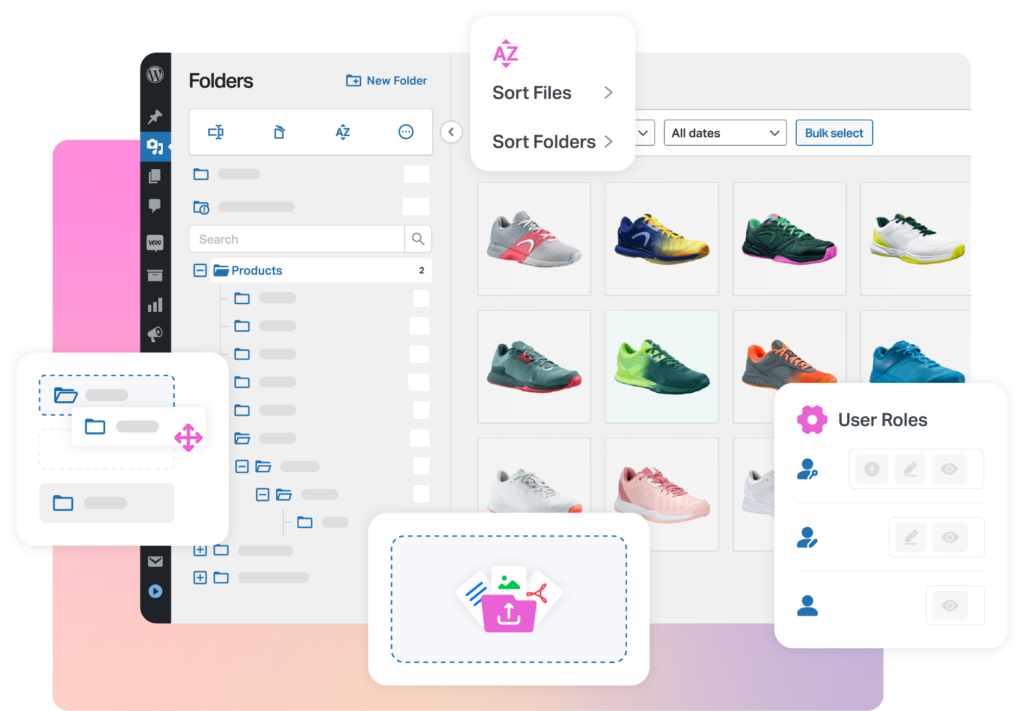
The main advantage of migrating to CatFolders is that you can keep your familiar folder organization while moving to a different media management workflow.
How to Switch from FileBird to CatFolders (Step-by-Step)
Step 1: Audit Your Current Folder Structure
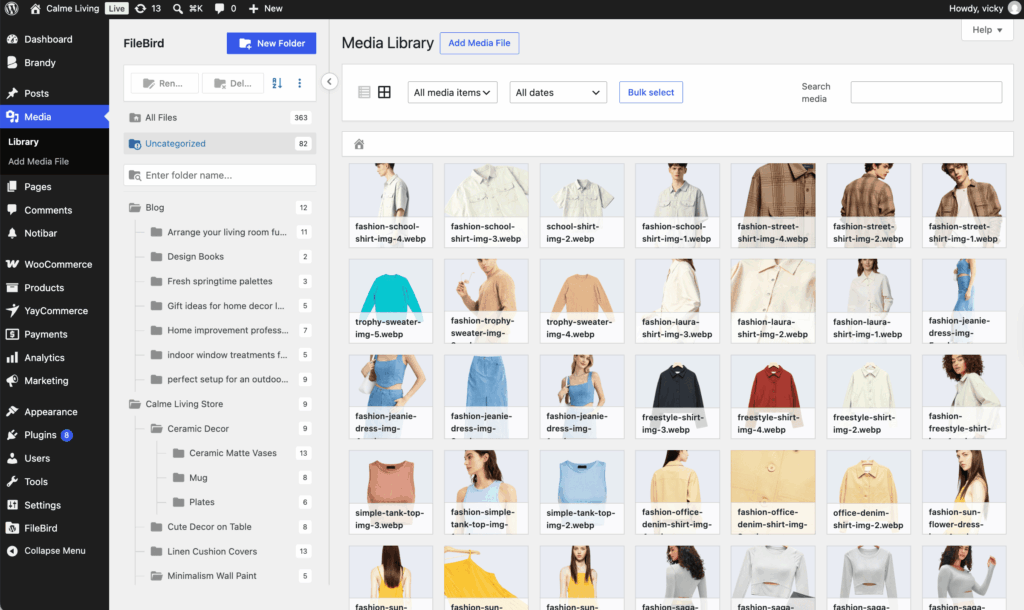
First, open Media > Library and expand your FileBird folder tree. Take clear screenshots and write down:
- The number of top-level folders
- The deepest level of nesting
- The names of your three or four biggest folders and how many files each holds
- Any unusual folders, such as ones with special characters or very long names
- The number of files in “Uncategorized” (files that aren’t in any folder)
This is your “before” picture. After the import, you’ll compare it with the “after.”
Step 2: Prepare to Backup Your WordPress Media Library
Before starting the migration, take a few minutes to prepare your website. This is particularly important if your Media Library contains years of uploads, nested folders, or media used across hundreds of posts and pages.
If anything unexpected happens, you can restore your site to this exact point.
Ideally, your backup should include:
- Your WordPress database
- Your uploaded media files
- Your themes and plugins
- Your WordPress configuration and other relevant files
The folder assignments and related organizational data may be stored in the database, so backing up only your images is not sufficient.
In FileBird, export your folder structure. FileBird’s Import/Export settings let you download your media folder structure as a CSV file. Keep the file somewhere safe. It records your folders and the files in them, and you can import it back into FileBird later if you need to return.
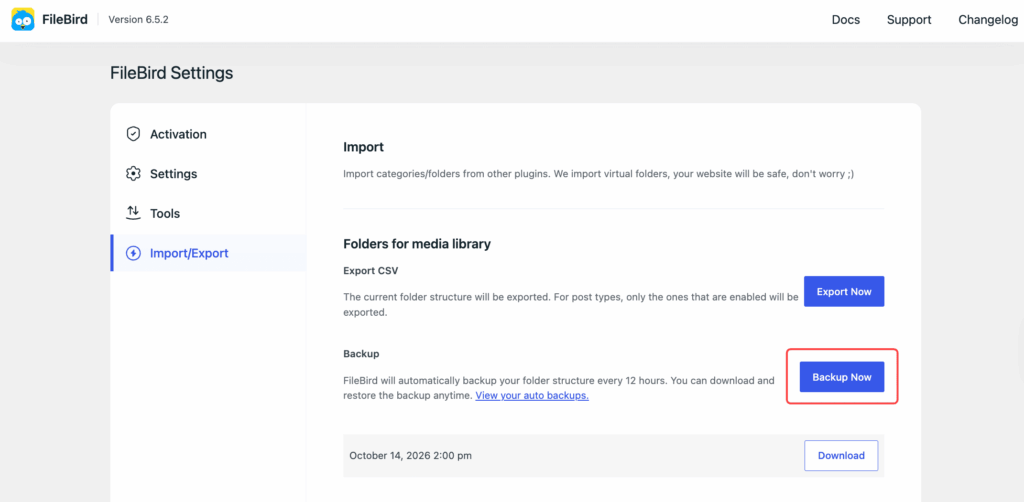
You can also click Backup Now in FileBird to create a fresh backup record.
Step 3: Install and Activate CatFolders
If you’re using the free version, go to Plugins > Add New, search for CatFolders, then click Install Now and Activate.
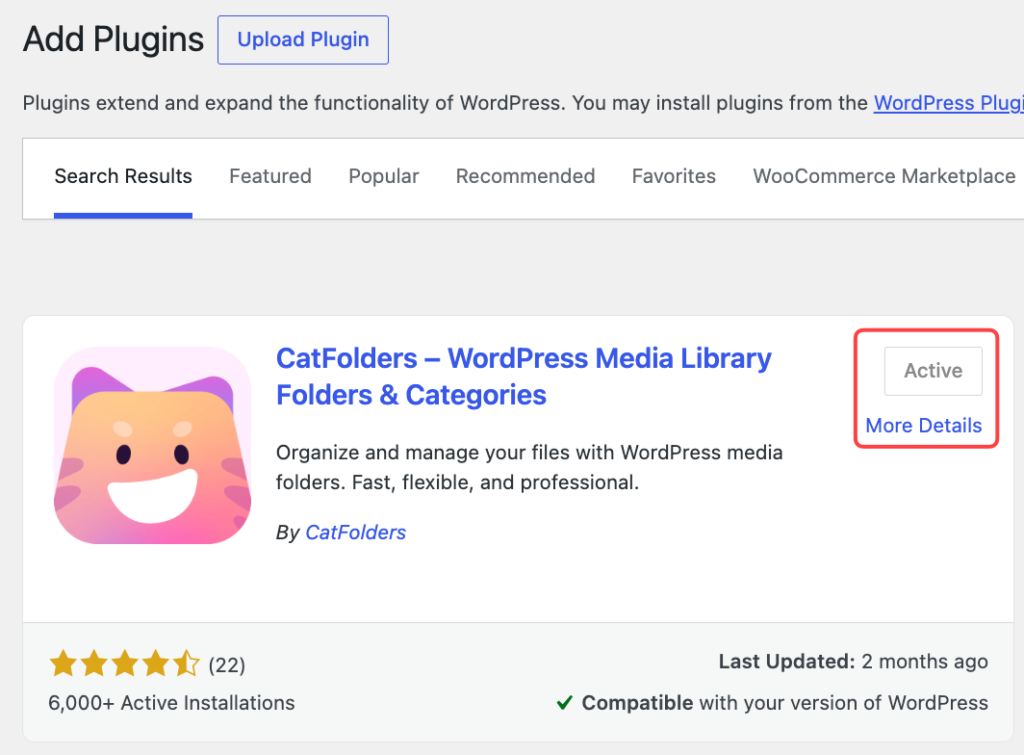
If you’re using CatFolders Pro (recommended for nested folder structures), download the plugin ZIP from your purchase email or your CatFolders dashboard. Then go to Plugins > Add New > Upload Plugin, choose the ZIP, click Install Now, and Activate. Activate your license key as well.
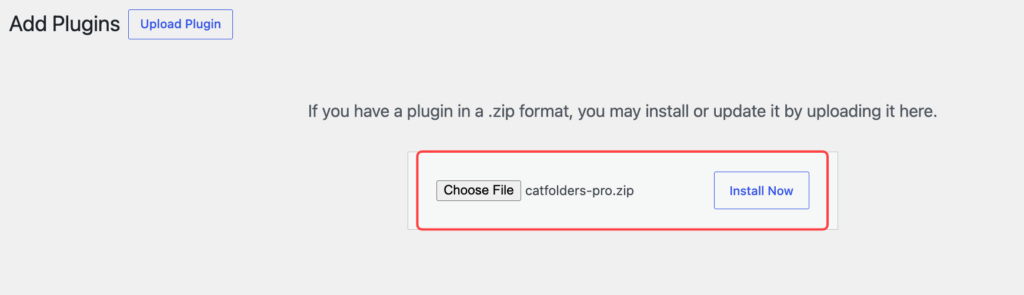
Leave FileBird active for now. CatFolders detects the folders created by the source plugin only while that plugin is active.
Step 4: Import Your FileBird Folders
Next, locate the CatFolders settings in your WordPress dashboard and open the import or migration section.
CatFolders provides a dedicated interface for importing folder structures from supported plugins.
- Open the CatFolders Migrate/import settings.
- You’ll see the list of folder plugins CatFolders detected. Select FileBird.
- Click Import now.
- Wait for the import to finish.
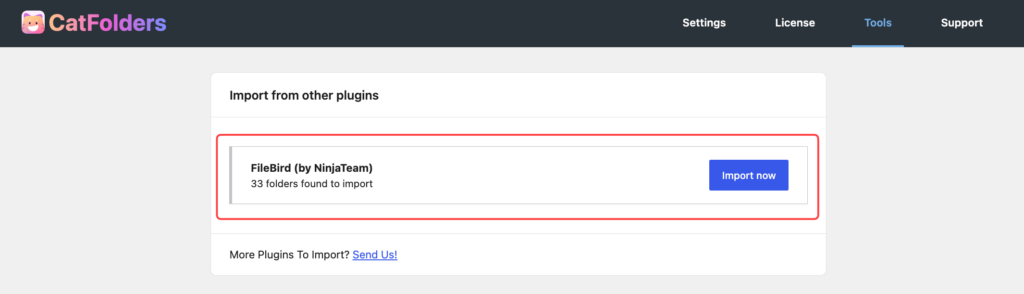
CatFolders imports your FileBird folders and the media files organized in them. When it’s done, the FileBird button is disabled because each source plugin can be imported only once.
CatFolders supports one-click import from several other folder plugins as well, including Real Media Library, WP Media Folder by JoomUnited, HappyFiles, and so on.
Step 5: Review Your Imported Folder Structure
After the import finishes, return to Media → Library and check your folders. Compare the CatFolders structure with the structure you reviewed in FileBird.
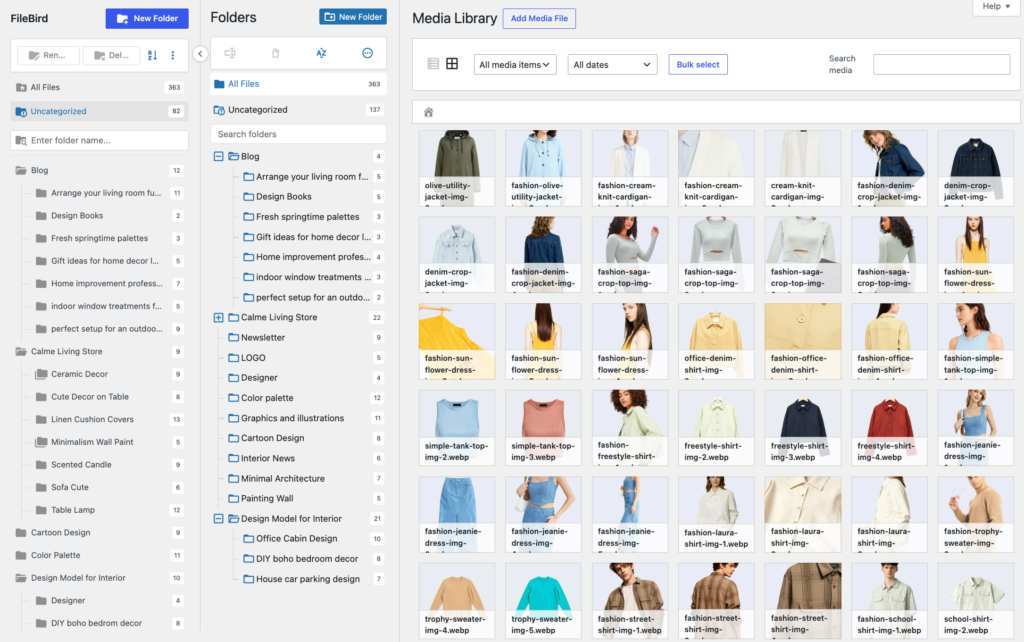
Your imported organization should reflect the corresponding folder structure in CatFolders, subject to the source data and the folder levels supported by your CatFolders version.
Check that the main folders appear, important subfolders are present where supported, and representative files are assigned to the expected folders.
Don’t just check whether the folder names exist. Open several folders and confirm that the media inside them is organized as expected.
Frequently Asked Questions
- Do I need to recreate my folders manually?
No, not if the existing folder structure is detected and imported successfully. CatFolders is designed to import supported folder data, so you shouldn’t need to recreate every folder by hand. Always review the imported hierarchy before making further changes.
- Will my image URLs and links change when I switch?
No. Both FileBird and CatFolders use virtual folders, so your files stay in the standard WordPress uploads location. The links in your posts and pages continue to work.
- Will I lose my images when switching from FileBird to CatFolders?
The migration is intended to transfer folder organization, not to require re-uploading your entire Media Library. However, you should back up your website and verify that your files remain accessible before deactivating FileBird.
- Is CatFolders suitable for a large WordPress Media Library?
CatFolders is designed to organize media through virtual folders and supports bulk file management. It can be useful for content-heavy websites, but you should test the plugin with your own media library, integrations, and workflow before making a permanent switch.
- Can I run the FileBird import more than once?
No. CatFolders allows one import per source plugin. After you click Import now, the FileBird button is disabled. That’s why a backup and a staging test are a good idea.
Final Thoughts
Your WordPress folder structure is part of your daily workflow. It helps you find images, manage content, and keep your Media Library organized as your website grows. Rebuilding that structure manually can be time-consuming, especially when you’ve spent years organizing thousands of files.
Fortunately, switching from FileBird to CatFolders doesn’t have to mean starting over.
With CatFolders’ built-in import feature, you can bring your supported FileBird folder organization into a new media management workflow. The key is to prepare your website, back up your data, import the folders, and verify that everything works before removing your old plugin.
If you’re ready to explore another way to manage your WordPress Media Library, give CatFolders a try.
Keep the folder structure you’ve built. Improve the way you manage your media. And spend less time searching for the files you need.
